 AIVane
TUTORIAL · ABOUT 15 MIN · IN YOUR BROWSER OR ON WINDOWS
Scrape a page into Google Sheets on a schedule in AIVane Cloud
You will collect every customer from a public practice page into a Google Sheet, run it once on your computer and try it in AIVane Cloud, and then schedule it to run every day at 9:00 in your time zone. The scheduled runs happen on AIVane's servers, so your computer can be off.
- 01
Build the scraping automation on the public practice page
In My automations, choose Create, then Describe a task. Describe: Collect the Customer name, Contact name, Phone and Email of every customer on all pages. Enter https://aivane.net/practice/customers/ as Start page (optional) and choose Continue, then save the automation when the preview shows the first rows. Keep the columns customerName, contactName, phone and email to match the customer entry form. Each customer name also links to a detail page with Customer since, Status, Order count and Notes.
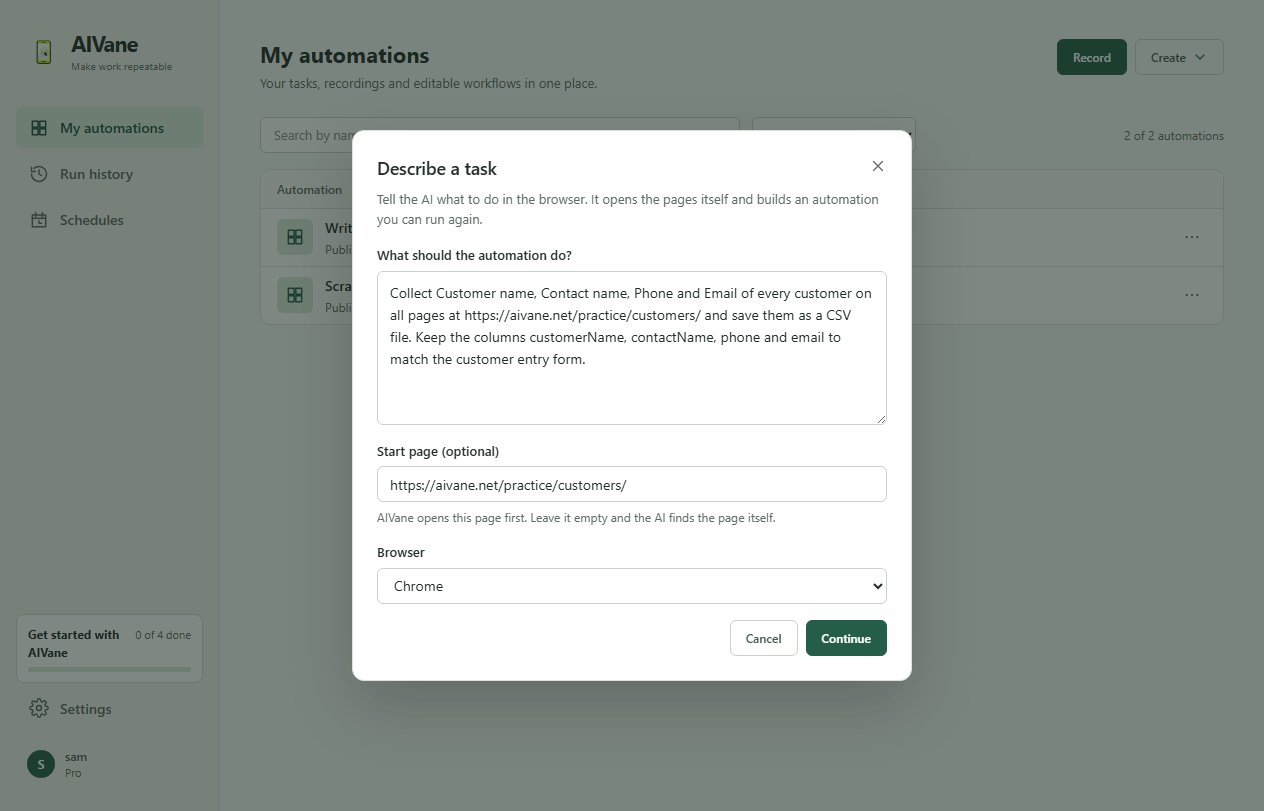
In your browser: At https://app.aivane.net choose Create, then Describe a task, and use the same description and Start page. Save it to your library; from then on it repeats the same steps without asking AI again.
Stuck? AIVane Cloud can't reach pages on your own computer, so this tutorial uses the public practice page. If you made the automation in Collect a web list into a table, you can use that one and skip this step.
- 02
Connect your Google account on this computer
Open Settings › Connections. Under On this computer, choose Add connection, then add a Google account. Google's consent page opens in your browser; AIVane asks only to use the spreadsheets you choose or that it creates. Back in AIVane the account shows Ready.
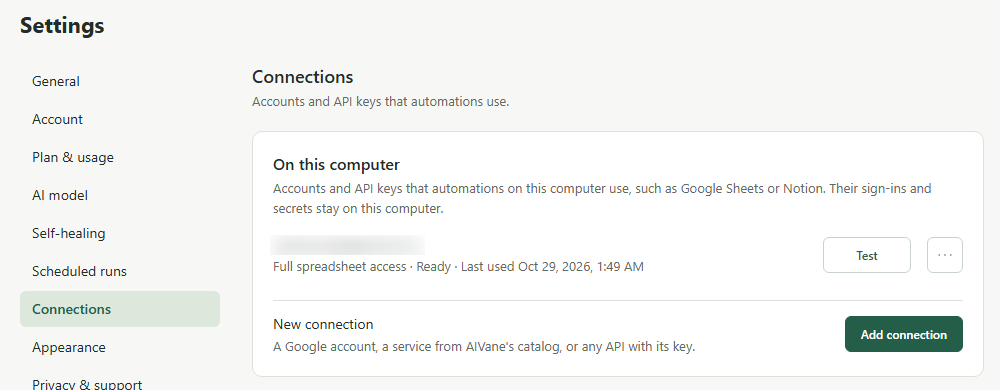
In your browser: Desktop only. In the web workspace you use the organization's connection (step 5) instead.
Stuck? The connection stays on this computer. Your organization's cloud runs use a separate organization connection (step 5).
- 03
Write the rows to a Google Sheet
Ask the AI assistant on the automation's Overview: Write every customer to a Google Sheet, replacing what is already there. Then open the Flow editor tab and select the new Write spreadsheet table step. Under connection, choose your Google account, then choose Choose Google Sheet next to spreadsheet and pick the spreadsheet in Google's window. Choose Apply, then Save. Keep mode at Default (overwrite) so each run replaces the rows with the current list, and leave sheetName empty to write to the first worksheet.
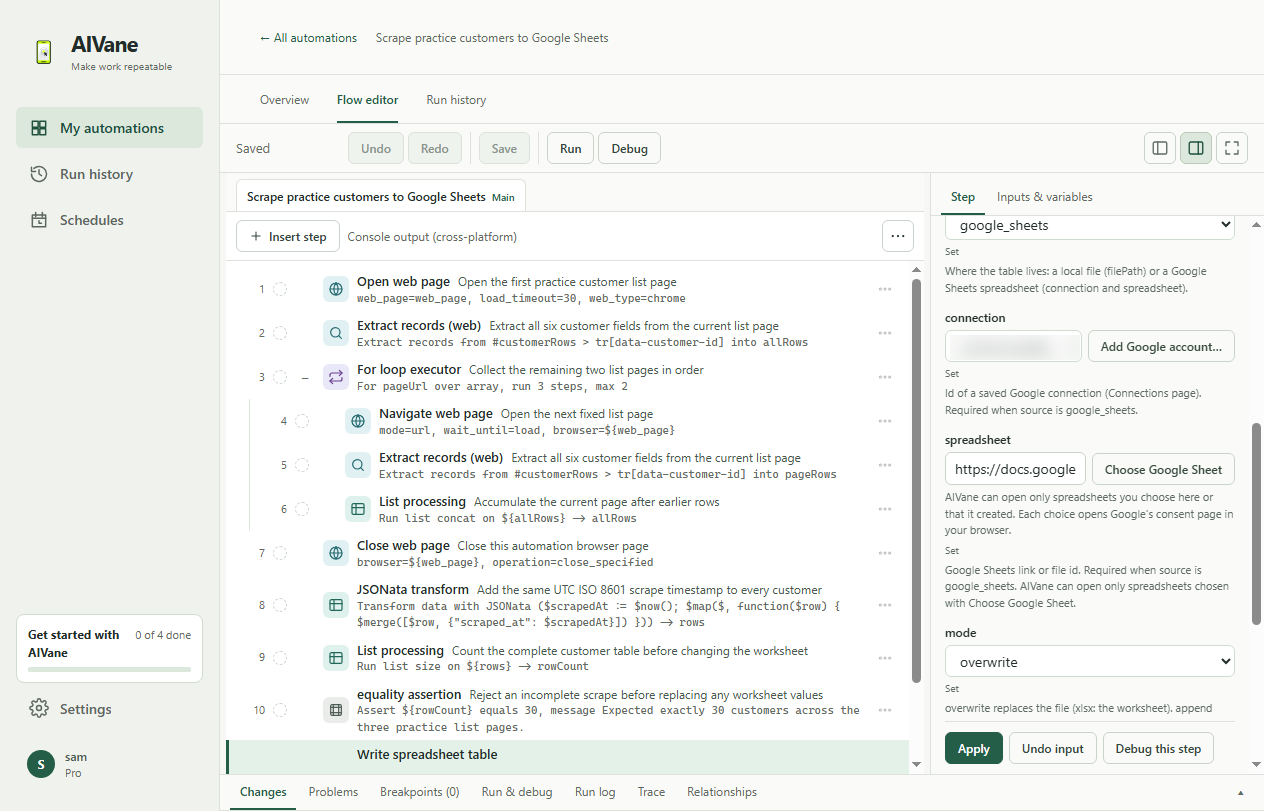
In your browser: Desktop only. The automation you run on the web must already include its Write spreadsheet table step.
Stuck? Each spreadsheet you choose opens Google's consent page once. AIVane can open only spreadsheets you choose there or that it created.
- 04
Run it once on this computer
On the Overview, choose Run, keep This computer under Run on and choose Start run. Stay on the page until the run finishes. The spreadsheet now has a header row and one row for each of the 30 customers.
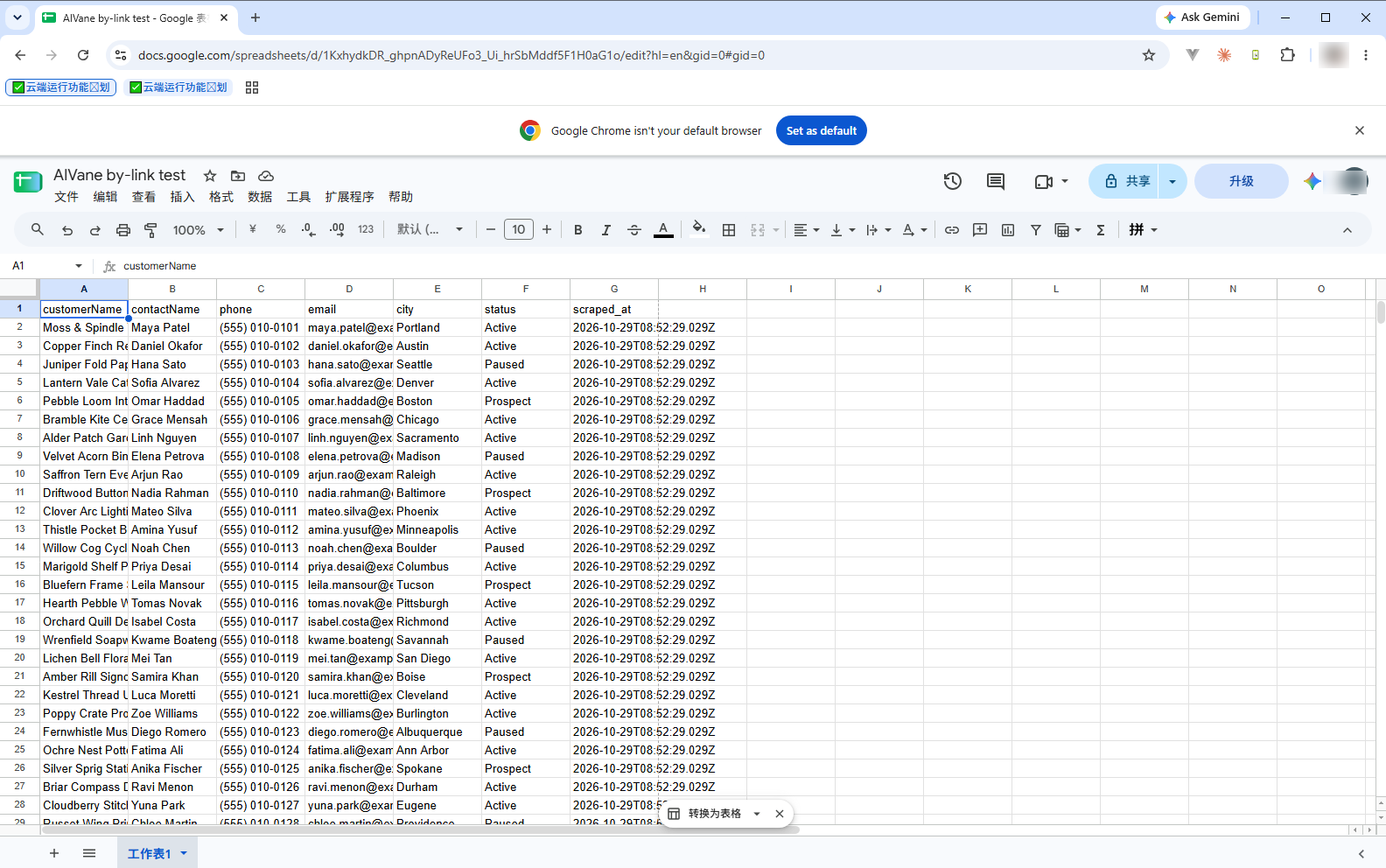
In your browser: Desktop only.
- 05
Connect Google for your organization
An organization administrator signs in at https://app.aivane.net/account/org-connections, opens Organization connections and chooses Connect Google account. Then choose Select spreadsheets and pick the same spreadsheet in Google's window. If the administrator also chose Grant full spreadsheet access, the button reads Browse spreadsheets (optional) and this pick is not needed. The connection shows Connected.
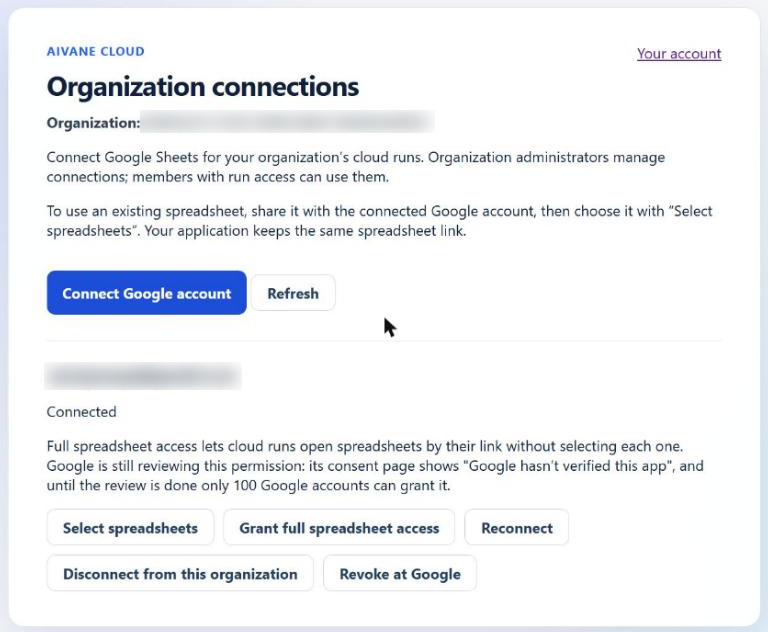
In your browser: Open Settings, then Connections, and find Organization connections (an administrator connects the Google account and selects the spreadsheets there, as above).
Stuck? The organization connection only sees spreadsheets picked in its own Google window. If the spreadsheet belongs to a different Google account, share it with the organization connection's account first (with edit access), then select it.
- 06
Run it once in AIVane Cloud
Choose Run and pick AIVane Cloud · Business under Run on. Under Connections in AIVane Cloud, select the connection from step 5 in Choose an organization connection and choose Check access. Wait for Access confirmed, then choose Start run. You can close AIVane while it runs; after it succeeds, the spreadsheet again holds the 30 customers.
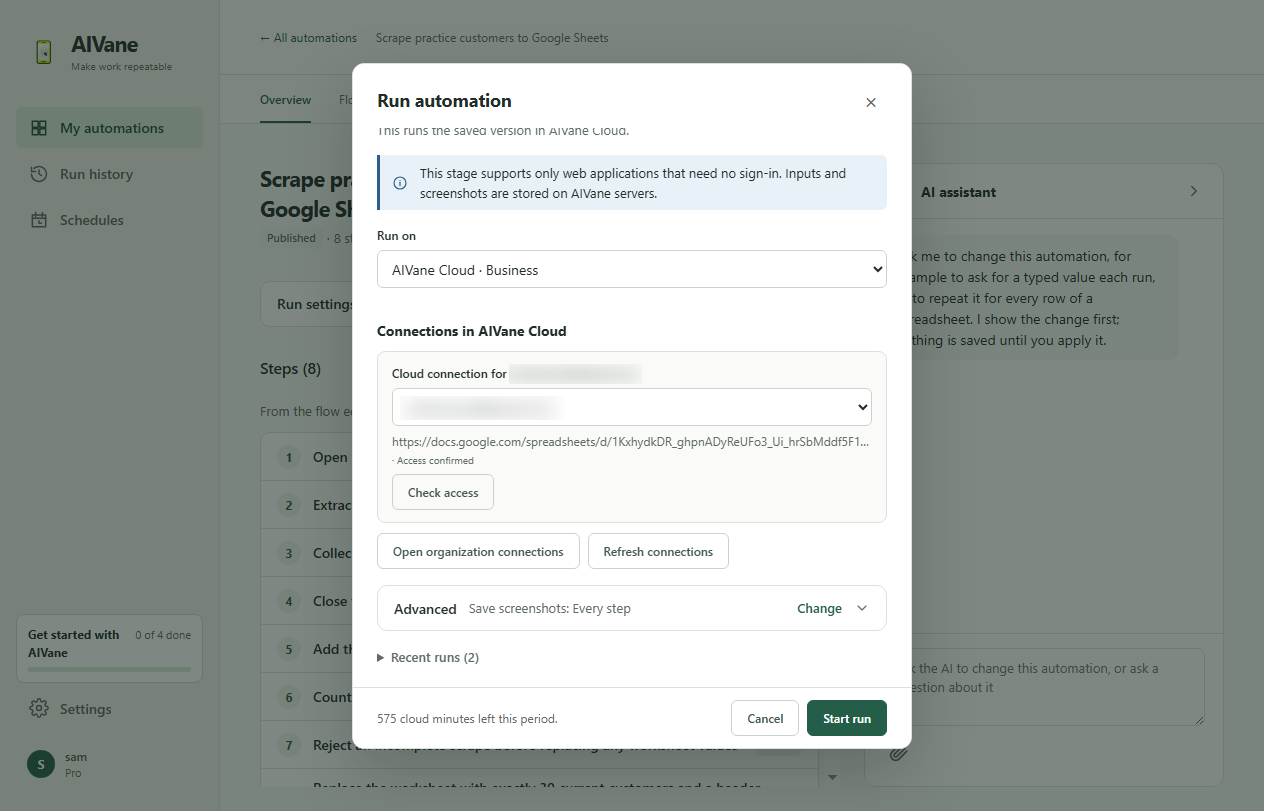
In your browser: Open the automation and choose Run. If Run on is shown, keep AIVane Cloud · Business. Under Connections in AIVane Cloud, select the connection from step 5, choose Check access, wait for Access confirmed, then choose Start run.
Stuck? Every Google Sheets step must use a fixed Google account to run in AIVane Cloud; a connection chosen at run time can't be checked in advance.
- 07
Schedule it in AIVane Cloud
On the automation's Overview, choose Schedule ▾, then In AIVane Cloud…, and select your Organization if prompted. Under 1. Publish a cloud version, check Values for each run, then use Choose an organization connection in Connections in AIVane Cloud to select the connection from step 5, choose Check access and wait for Access confirmed. Choose Publish cloud version and wait for Published. Under 2. Run a trial, choose Run trial and wait for The trial succeeded. The trial is a real run and rewrites the spreadsheet; the manual cloud run in step 6 does not replace it. Under 3. Set the schedule, enter Customers daily in Name (optional), set Repeat to Every day, keep just one entry in Times at 09:00 and check that Time zone is your own time zone. Select the checkbox ending I approve this schedule., then choose Create schedule. Open Schedules in the sidebar and find Customers daily under In AIVane Cloud; check that On is turned on and Next run is the next 9:00 in your time zone.
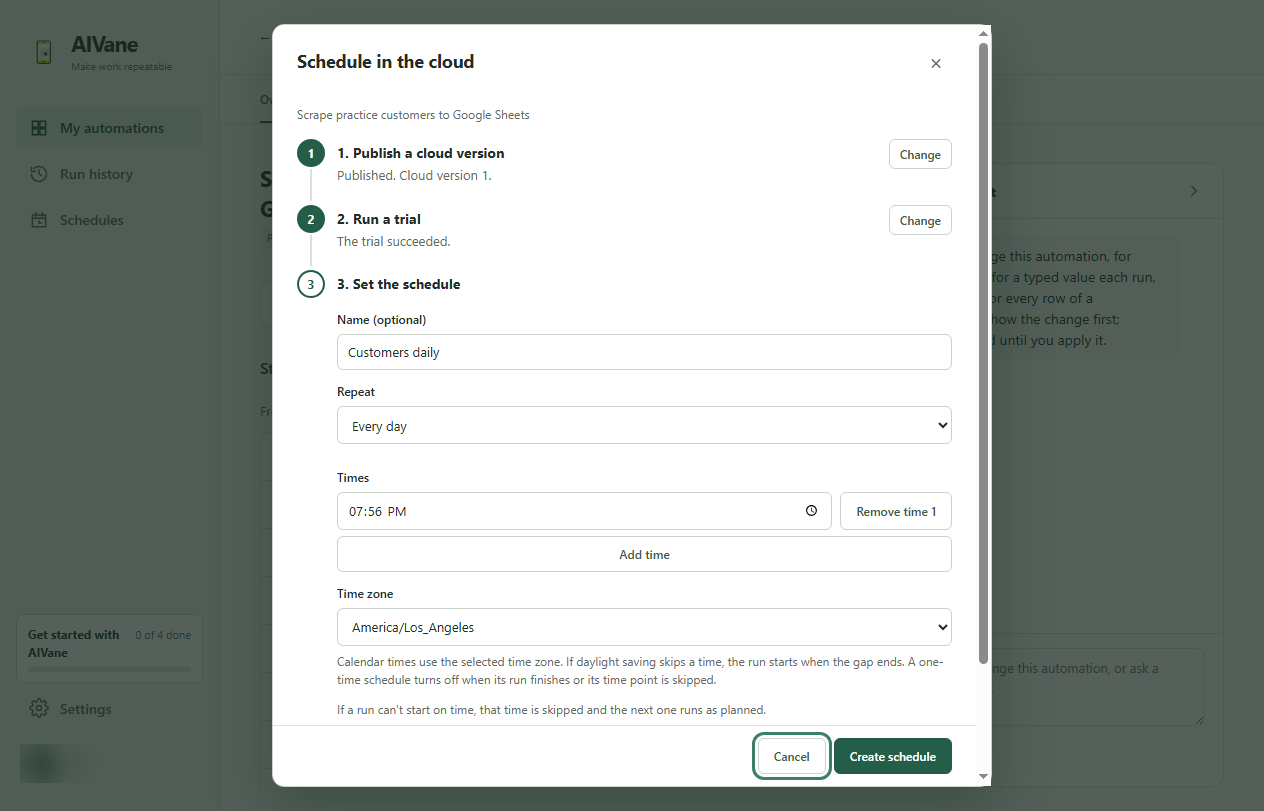
In your browser: Desktop only. The web workspace lists cloud schedules but cannot create or change them yet; create the schedule in the desktop app.
Stuck? Only a successful trial of the published cloud version with the same values can confirm the schedule. If it fails, fix the problem and run the trial again. The trial and scheduled runs use your organization's cloud minutes. The cloud keeps running the version you confirmed; after changing the automation, choose Update cloud version, then Publish the current version, run a successful trial and approve with Save.
- 08
Turn off your computer and check the next day
Turn off your computer before the next scheduled 9:00 in your selected time zone. AIVane Cloud runs the automation and writes to the spreadsheet. When you next open AIVane, find the run in Run history with the tags Cloud run and Cloud schedule: Customers daily. Open it to check the result and screenshots, then check that the spreadsheet holds the 30 customers with a fresh ran time in Run history.
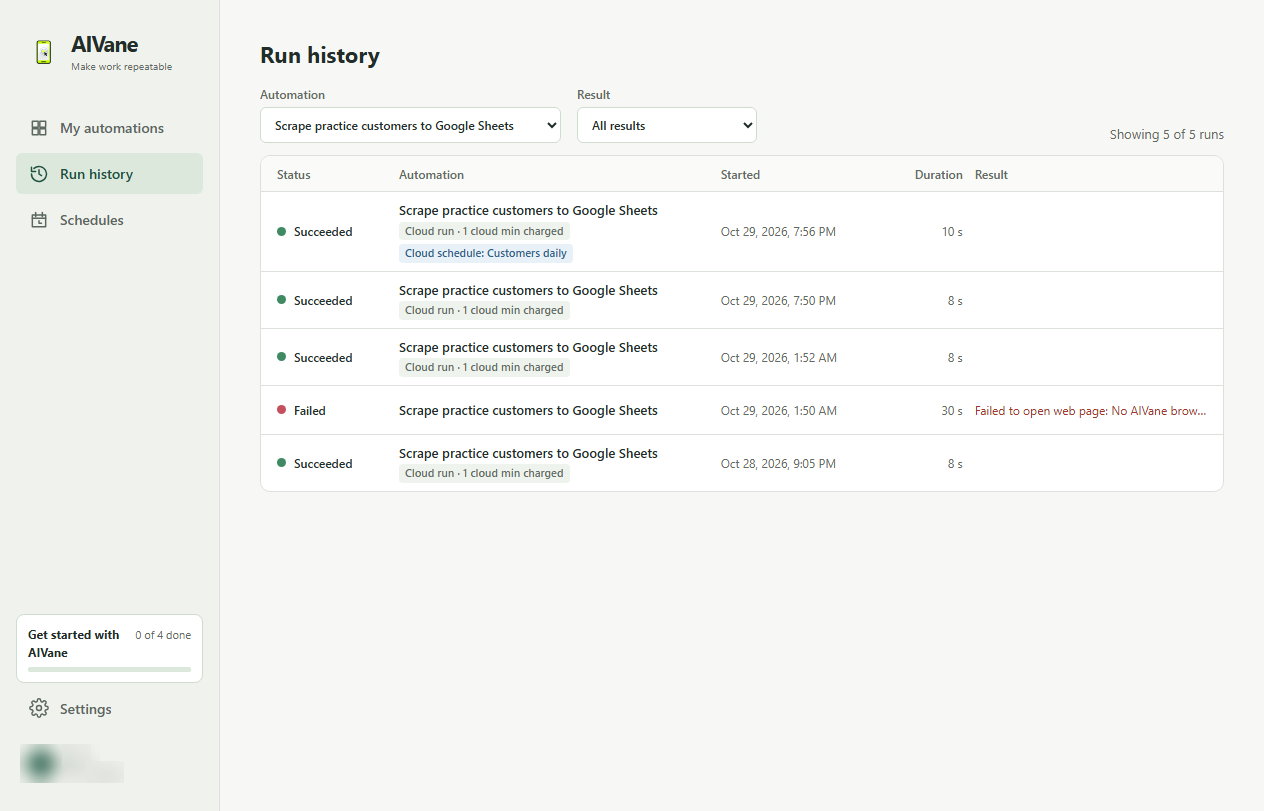
In your browser: Open Run history (and Schedules, under In AIVane Cloud) to see the cloud run and its screenshots.
Stuck? Cloud run results and screenshots are kept on AIVane's servers for 30 days. A scheduled run that fails is listed in Run history; no email is sent. If a run can't start on time, that time is skipped and the next one runs as planned.