 AIVane
TUTORIAL · ABOUT 6 MIN · IN YOUR BROWSER OR ON WINDOWS
Collect a web list into a table
You will collect every customer from a list spread over three pages into a CSV file, without recording anything: you describe the task and AI builds the automation.
- 01
Open the customer list
In the Get started checklist, start Collect a web list into a table and choose Open customer list, or open https://aivane.net/practice/customers/ in your browser. The public directory contains 30 fictional customers on three pages, with a detail page linked from each customer name.
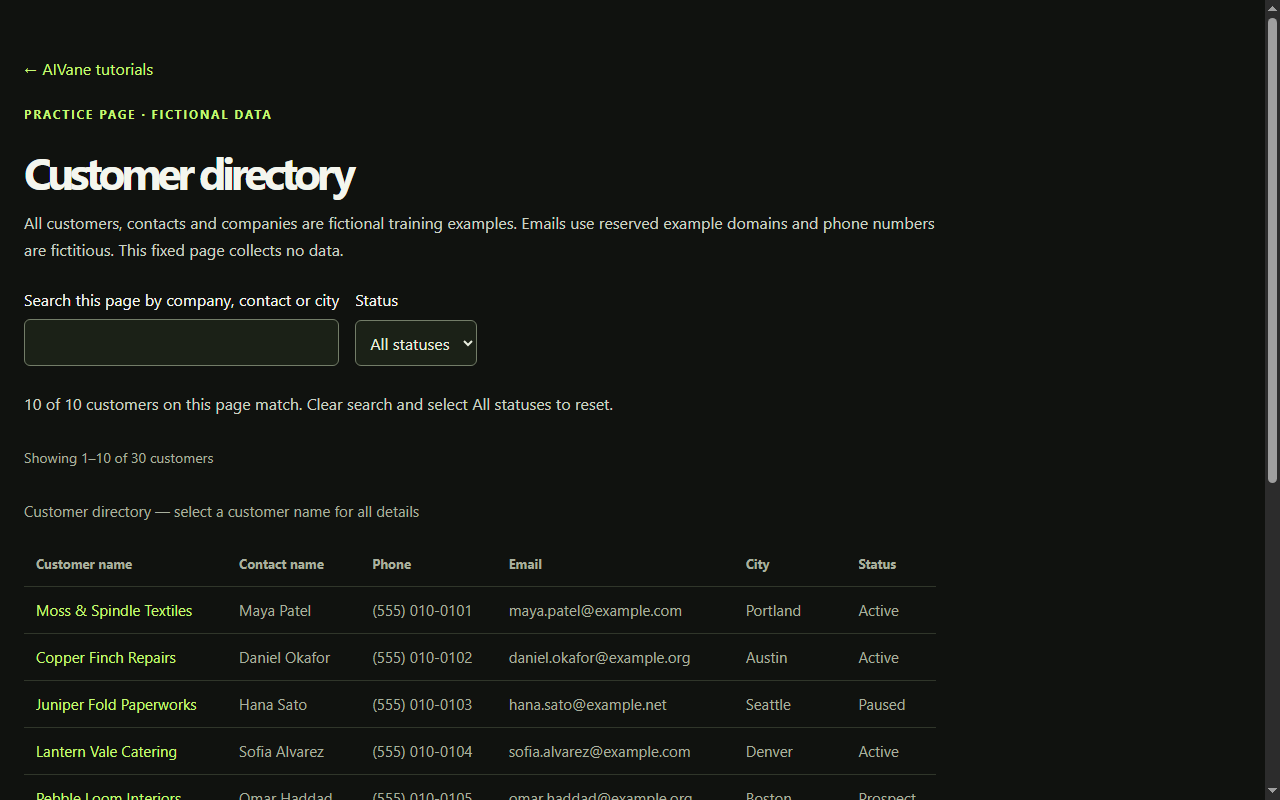
In your browser: Open https://aivane.net/practice/customers/ in a new tab to see the list AI will read. If Get started at app.aivane.net offers Practice free in the browser for this tutorial, choose it: Describe a task opens with the list as Start page.
- 02
Describe the task
In My automations, choose Create, then Describe a task. Under What should the automation do?, describe: Collect Customer name, Contact name, Phone and Email of every customer on all pages at https://aivane.net/practice/customers/ and save them as a CSV file. Keep the columns customerName, contactName, phone and email to match the customer entry form. Enter https://aivane.net/practice/customers/ as Start page (optional), choose your browser under Browser, then choose Continue.
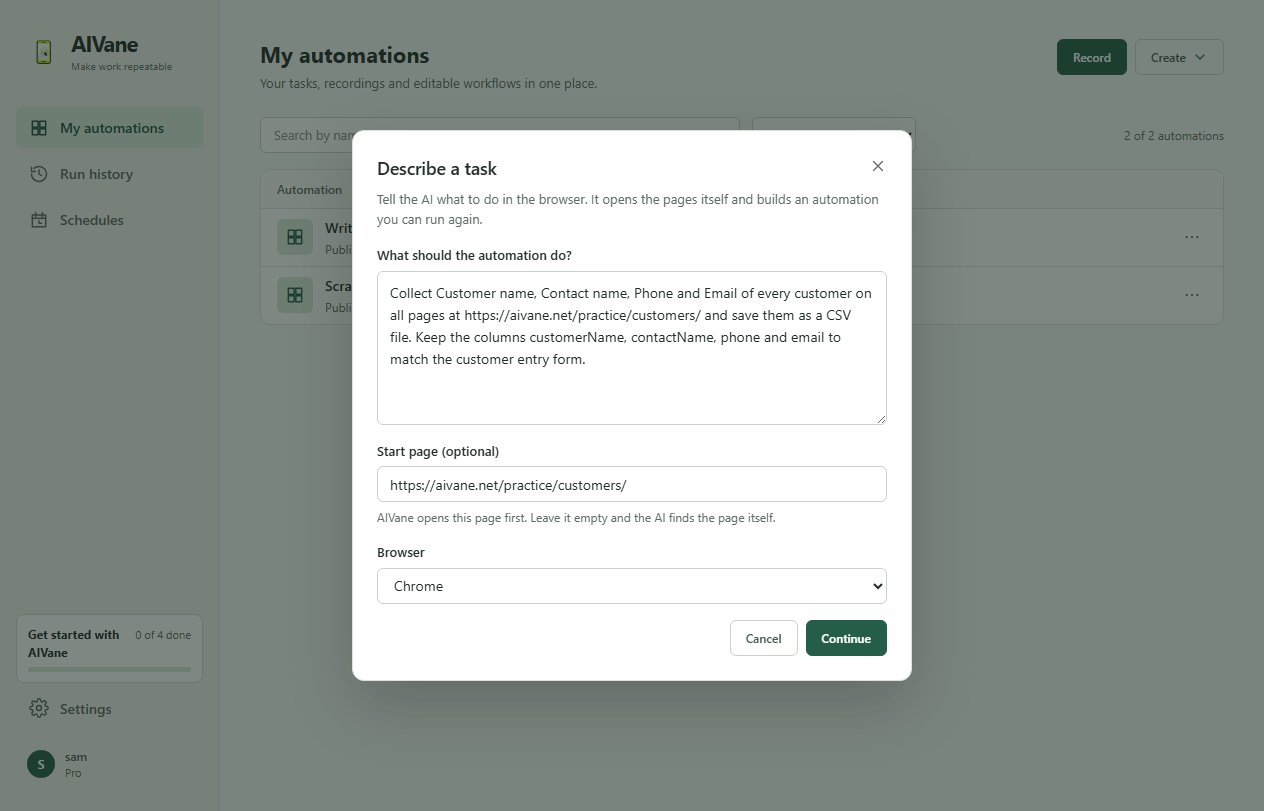
In your browser: At https://app.aivane.net choose Create, then Describe a task, and use the same description and Start page. There is no Browser to choose: AI works in an AIVane cloud browser, and nothing runs on your computer. Check Before it starts (where it runs, AI credits and cloud browser minutes), agree and choose Start. If AI asks before it clicks or types, choose Allow once.
Stuck? AI opens and reads the page itself. If it wants to click or type anything that changes a page, AIVane asks you first.
- 03
Check the sample and save
When AI is done, the preview shows the first rows it found under Sample data. Check the columns, then choose Save automation. It opens on its Overview tab with the steps AI built.
In your browser: When the status reads Ready to check, look at the sample rows, then under Save to your library choose Save to library. From then on it repeats the same steps without asking AI again.
- 04
Run it
On the automation's Overview, choose Run. Keep This computer under Run on and choose Start run, and stay on the page until the run finishes. Under Files saved by this run, choose Show in folder: the CSV file lists all 30 customers.
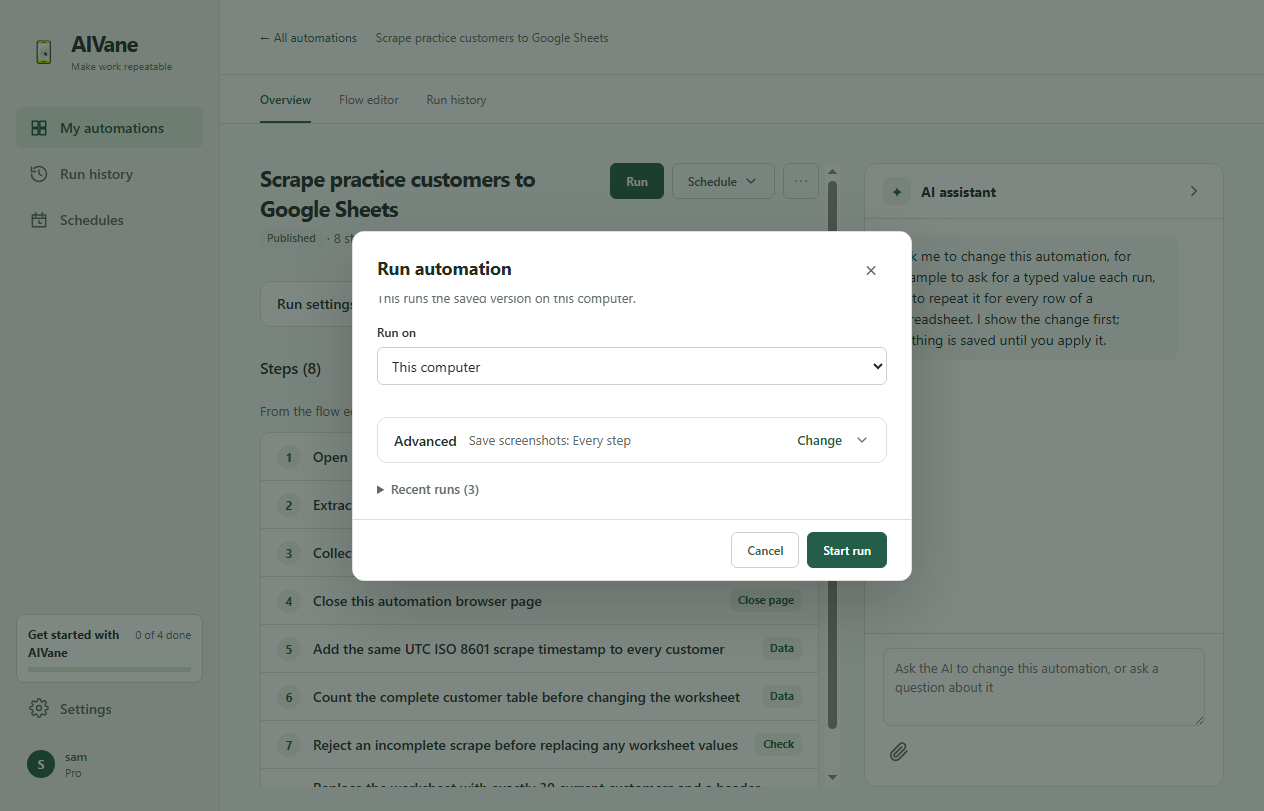
In your browser: Open the automation and choose Run. It runs in AIVane Cloud, so you can close the tab while it runs. When it finishes, open the run in Run history: under Outputs, choose Download next to the CSV file. It lists all 30 customers.