Keep supplier prices and stock in a Google Sheet and get a Slack alert when they change
Each run reads SKU, product, unit price and stock from every page of the supplier list, compares them with the list your Google Sheet kept from the last run, posts the changed items to your Slack channel and saves the current list for next time.
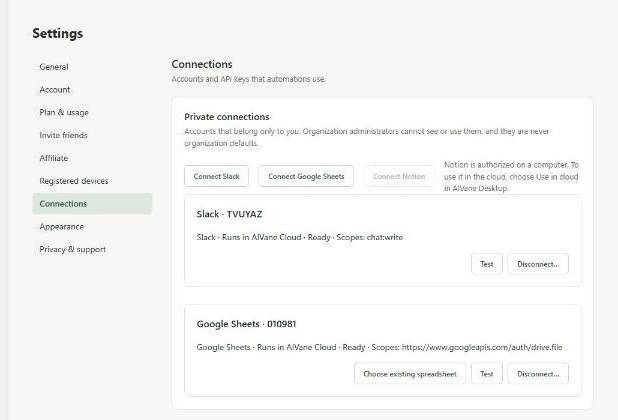
At https://app.aivane.net open Settings, then Connections. Choose Connect Google Sheets, then Choose existing spreadsheet and pick the sheet that keeps the price list. Choose Connect Slack and approve the AIVane app for your workspace. In Slack, invite the AIVane app to the channel for the alerts and copy the channel ID from the channel details.
02
Open the ready-made automation
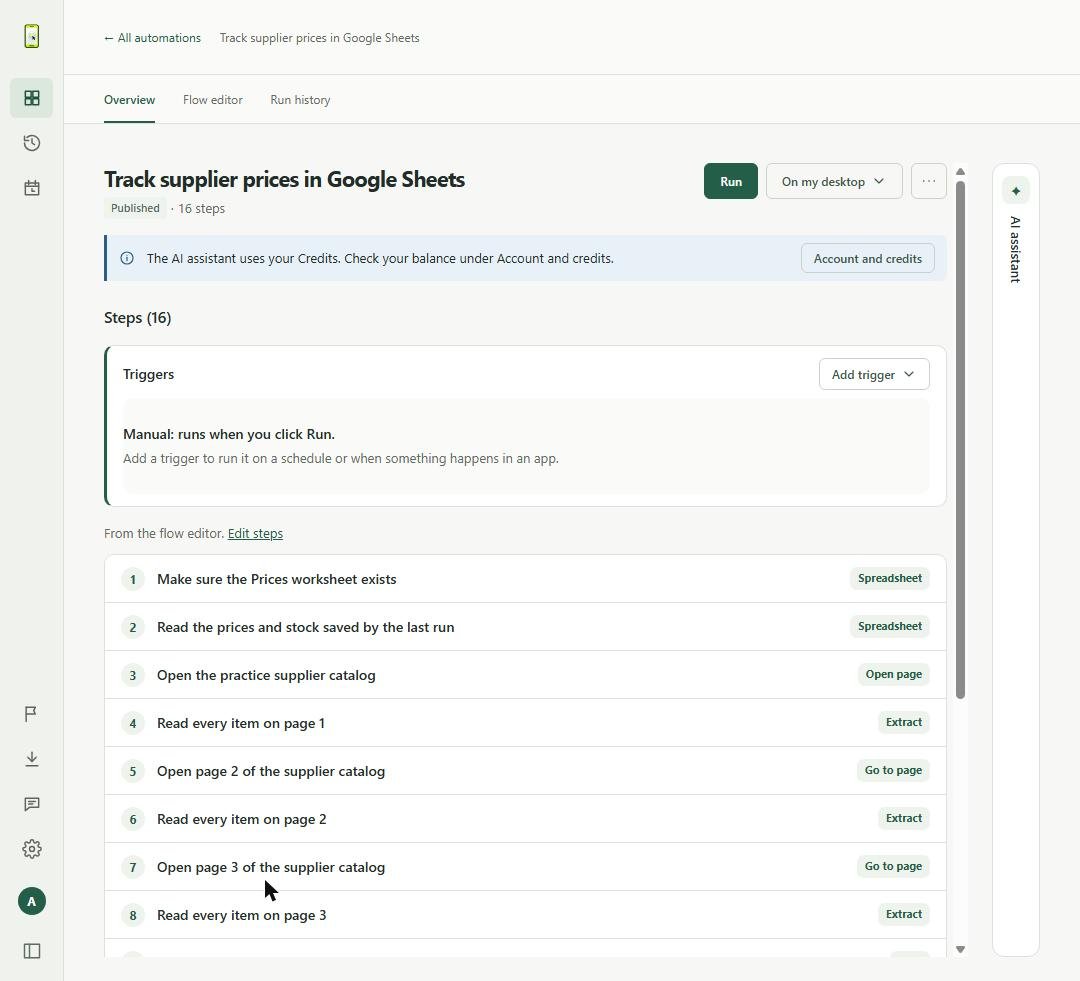
Choose Try it in your browser on this page. AIVane copies Track supplier prices in Google Sheets into My automations. It makes sure the sheet has a Prices worksheet, reads the list saved by the last run, opens all three pages of AIVane's public practice supplier catalog, compares each item's price and stock, posts the changed items to Slack and saves the current list.
03
Run it once to save the starting list
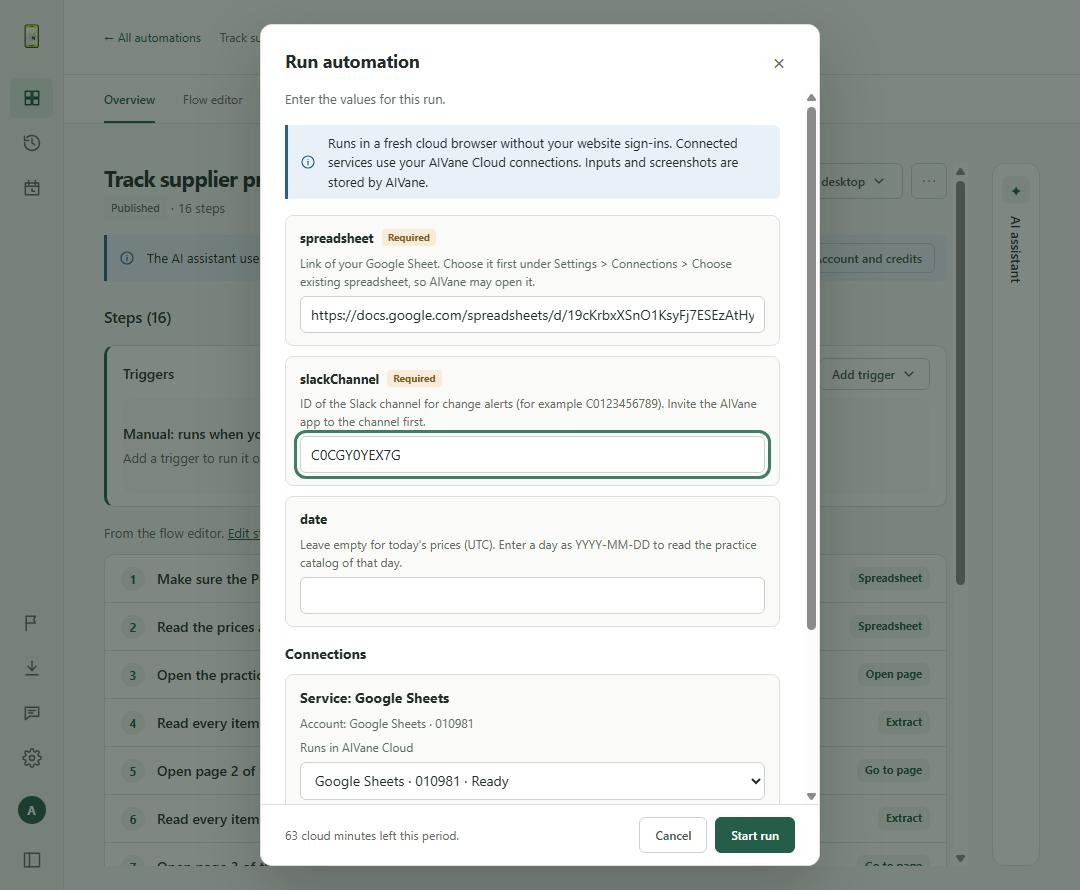
Choose Run, paste your sheet's address into spreadsheet and your channel ID into slackChannel, check your Google Sheets and Slack connections under Connections and choose Start run. The first run finds nothing saved yet, so it posts nothing and writes the 24 items to the Prices worksheet.
Tip: The practice catalog changes a few prices and stock levels every day (UTC). To see a change right away, enter yesterday's date as YYYY-MM-DD in date for this first run.
04
Run it again and read the Slack message
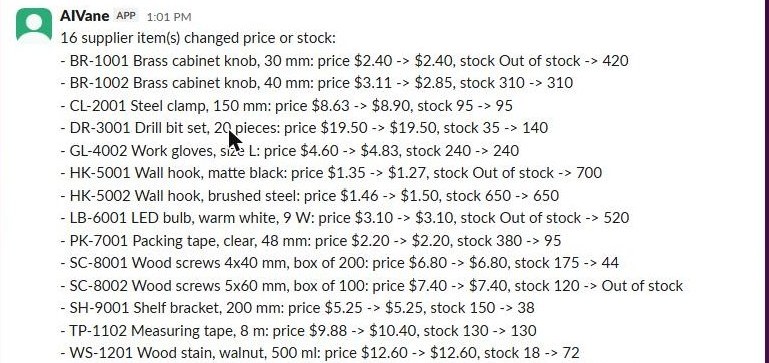
Run it again with date empty. AIVane compares today's catalog with the saved list and posts one message listing every item whose price or stock changed, with the old and new values, then saves today's list. A run that finds no change posts nothing.
05
Run it every morning
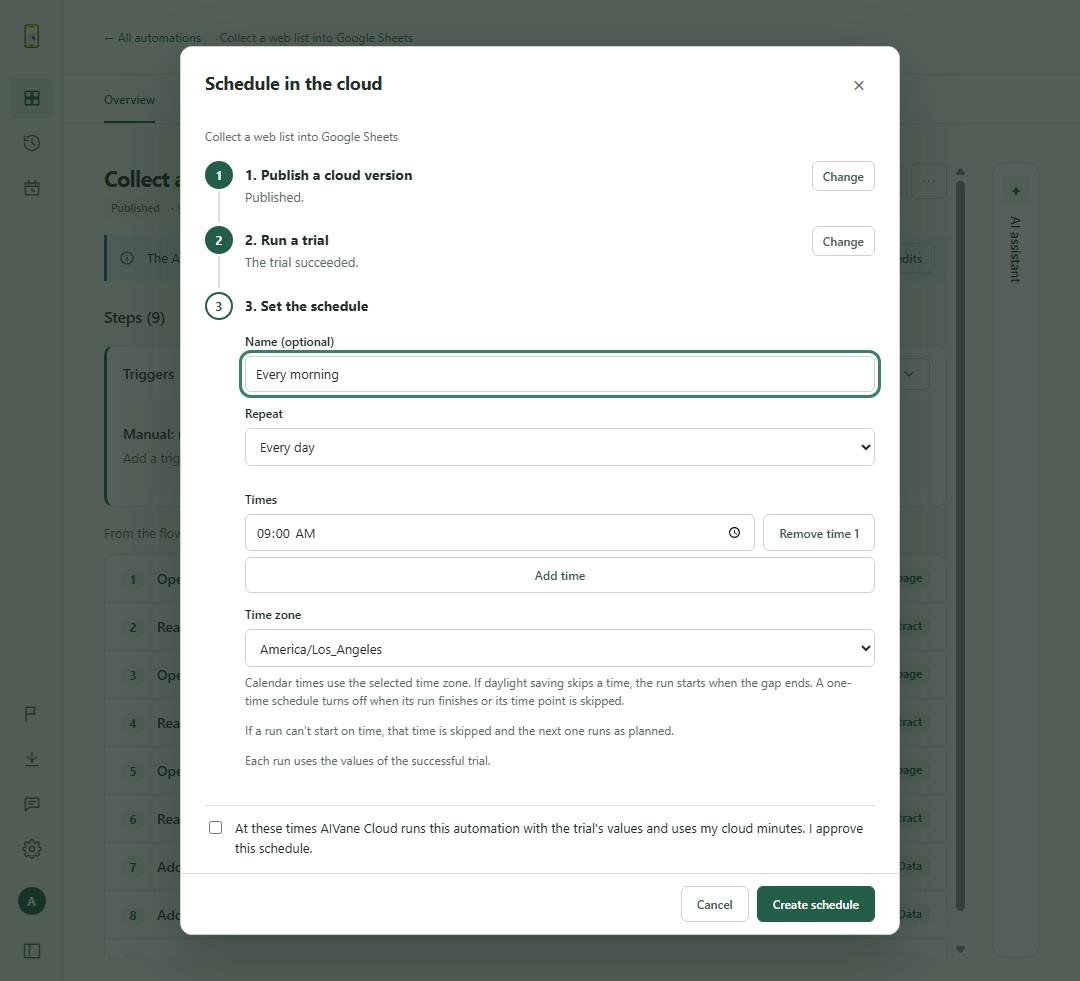
Choose Add trigger, then Schedule in AIVane Cloud. Publish the cloud version with your values, run a trial, choose Every day and a time, approve the schedule and choose Create schedule. The schedule appears under Schedules with its next run; pause or delete it there.
Tip: Each scheduled run uses the values of the successful trial and your cloud time.
Questions
Does my computer have to be on?
No. Runs and schedules happen in AIVane Cloud, so your computer can be off.
Do I need AI every time it runs?
No. A saved run repeats the same steps without asking AI again, unless you add an AI step yourself.
Does it use my cloud time?
Yes. Each run uses AIVane Cloud time, also on a schedule; a run of the practice catalog took about 40 seconds.
Which plan can schedule it?
Plans with cloud schedules can run it every day. Free and Starter can try one cloud schedule for up to three runs within seven days; every plan can run it by hand in AIVane Cloud.
Where are the previous prices kept?
In the Prices worksheet of your own Google Sheet. Each run reads it before it saves the current list, so you can also open it to see the last prices.
Will I get a message every day?
Only when at least one item's price or stock changed. A run without changes posts nothing; a new item that was not in the saved list is not reported as a change.
Can I watch my own supplier's site?
This ready-made automation reads AIVane's public practice catalog with fictional data. For your supplier's site, change the page addresses and the columns in the Flow editor, and make sure the site allows automated access.
Related use cases
IN YOUR BROWSER · WINDOWS DESKTOP APP
Collect every page of a web list into a Google Sheet
Open the ready-made automation, choose your Google Sheet and run it in AIVane Cloud. It reads all three pages of AIVane's public practice list and writes 30 fictional customers to your sheet, replacing the rows from the last run.
Open the ready-made automation, run it in AIVane Cloud and download customers.csv. It reads all three pages of AIVane's public practice list and saves 30 fictional customers to one file.
 AIVane